Godot SpriteFrames from pixel art
From tags to animations
In Godot 4 an AnimatedSprite2D plays animations that live in a SpriteFrames resource. Each animation has a name, a speed in frames per second, a loop setting and a list of frames, and every frame points at a region of a texture. Building that by hand is not hard, but it is repetitive, and it has to be redone whenever you change the art.
The PixelFlipbook Godot bundle does it for you. You mark ranges of frames with tags in the timeline, such as idle frames 1 to 2 and run frames 3 to 6, and the export turns every tag into an animation of the same name. If you used no tags, one animation called default covers all frames.
The zip holds one folder with three files: the sheet PNG, the .tres resource and a README that says where to put things. Nothing in the folder depends on where you put it, because the resource refers to the PNG by a relative path.
Using the bundle step by step
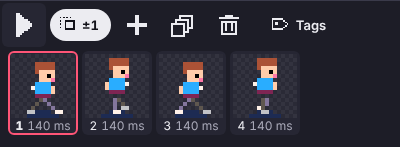
- Tag your animations. Select a range of frames in the timeline and add a tag. Give it a direction: forward, reverse or ping-pong.
- Export for Godot. Open Export and choose the Godot tab, then Export Godot bundle.
- Drop the folder into your project. Anywhere inside
res://works. The summary screen after export names the files and the resource to open. - Open the .tres file or assign it to the Sprite Frames property of an
AnimatedSprite2D. Your tags appear in the animation list. - Keep pixels sharp. In Project Settings, under rendering and textures, set the default texture filter to Nearest. Otherwise Godot smooths the sprite when it scales.
A bundle is deterministic: exporting the same project twice gives identical files, so it plays well with version control.
How speed, durations and loops are decided
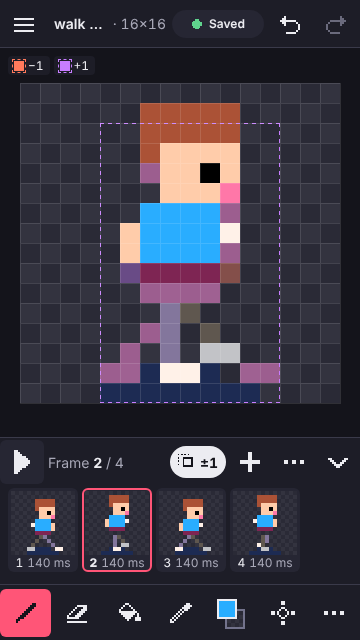
PixelFlipbook lets every frame have its own duration, while Godot stores one speed per animation and a relative multiplier per frame. The exporter converts between the two like this:
- Speed is 1000 divided by the animation's base duration in milliseconds. The base duration is the most common duration among the tag's frames, and a tie goes to the shorter one. Frames of 100 ms give a speed of 10.
- Each frame's duration is its own duration divided by the base. With frames of 100 ms and 200 ms, the base is 100 and the multipliers are 1.0 and 2.0.
- Loop mode comes from the tag direction. Forward becomes linear looping. Ping-pong is written as the frames forward and then back, with a plain loop, so it plays as ping-pong on every Godot 4 release. Reverse writes the frames in reverse order and loops linearly.
Godot enforces a minimum frame time. If your shortest frame would drop below it, the exporter raises the speed to compensate and says so in the export report, instead of writing a resource that plays wrong.
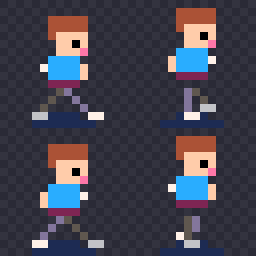
Here is the start of a real resource, generated from the four-frame walk with a ping-pong tag:
[gd_resource type="SpriteFrames" format=3]

[ext_resource type="Texture2D" path="walk.png" id="1_sheet"]

[sub_resource type="AtlasTexture" id="AtlasTexture_00000"]
atlas = ExtResource("1_sheet")
region = Rect2(0, 0, 16, 16)

[sub_resource type="AtlasTexture" id="AtlasTexture_00001"]
atlas = ExtResource("1_sheet")
region = Rect2(16, 0, 16, 16)

[sub_resource type="AtlasTexture" id="AtlasTexture_00002"]
atlas = ExtResource("1_sheet")
region = Rect2(0, 16, 16, 16)

[sub_resource type="AtlasTexture" id="AtlasTexture_00003"]
atlas = ExtResource("1_sheet")
region = Rect2(16, 16, 16, 16)

[resource]
animations = [{
The free route: sheet and JSON
You do not need the bundle to get animation into Godot. The spritesheet export is free and gives you a PNG with evenly sized frames. In Godot's SpriteFrames editor, use the option to add frames from a sprite sheet, tell it how many frames run horizontally and vertically, select the frames you want and add them to an animation. Then set the speed yourself.
That takes a minute or two per animation. The bundle is for the case where you have many animations, change them often and would rather not click through that dialog each time.
If you use another engine, the same sheet works with anything that can read a PNG and a list of rectangles. The JSON guide covers the fields.
Try it
Open the walk starter for a four-frame animation, add a tag called walk across all four frames, and look at the Export sheet. Or the bounce starter, whose squash frame makes a good test of per-frame durations.