A sprite sheet maker for pixel art animation
What a sprite sheet is, and why games want one
A sprite sheet is a single image that holds every frame of an animation, laid out on a grid. Game engines prefer it to a folder of loose images: one file loads once, draws fast and keeps the frames in a known order. The engine then needs to know where each frame sits, which is what the JSON file is for. It lists the rectangle of every frame, how long each one lasts and the names of your animation tags.
PixelFlipbook makes both files from the animation you drew, in one step. You do not need to cut frames out by hand, and you do not need a separate tool to write the data. The result is a single zip that holds name.png and name.json, so there is one download and nothing to collect.

Frames come from the timeline
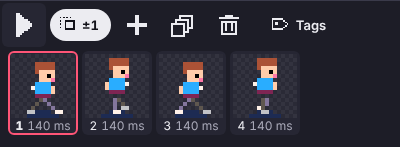
The sheet is built from your timeline, in order, so the work happens there: one thumbnail per frame, each with its own duration. On a desktop the timeline runs along the bottom and the tools and palette sit beside the canvas.

Export a sheet in five steps
- Draw your frames. One frame per step of the movement. Use the onion skin ghosts to keep the motion smooth.
- Open Export and choose Spritesheet. On a phone it is in the More menu, on a desktop it is under File.
- Pick a layout. Rows puts frames left to right and wraps by the column count you choose. Columns stacks them top to bottom. Grid fills a rectangle as square as it can, row by row.
- Set padding. Zero to eight pixels between frames, plus an optional outer margin.
- Choose the frames. All frames, the selected range, or just one tag. The readout updates as you change settings, for example "4 frames · 33 × 33 px". When no frames are selected it says "Select frames" instead of showing a wrong size.
Your last settings are remembered per project, so exporting again after an edit takes one tap. Exporting twice gives byte-identical files, which keeps version control diffs clean.
Layouts, padding and the arithmetic
The size of the sheet follows directly from your settings, and the rule is simple enough to check by hand. Take four frames of 16 by 16 pixels, two columns and a padding of 1 pixel. The width is two frames plus one gap, 2 × 16 + 1 = 33 pixels, and the height works the same way, so the sheet is 33 by 33. The third frame lands at x 17, y 17, since it sits one frame and one gap in from each edge.
A grid of five 8 by 8 frames with three columns and no padding gives a sheet that is 24 by 16 pixels: three cells across, two down, with the last cell left empty and left out of the JSON.
Why padding at all? If you scale a sheet or draw it with smoothing, a frame can pick up colour from its neighbour at the edge. A pixel or two of transparent padding keeps frames apart. If your engine uses nearest-neighbour filtering, which is what you want for pixel art, you can leave it at zero.
Limits. A sheet may be at most 16,384 pixels on a side, a common texture limit. A long single row of 256 large frames can hit that, and the export then asks you to use the grid layout instead. Nothing is cropped silently.

What goes in the JSON
The JSON describes the sheet in the format Aseprite uses, so tools that already import Aseprite exports can read it. Each frame has its rectangle and its duration in milliseconds. Your tags become animation ranges with a direction, and your layer names are listed. The default layout is the array form, and a hash form is available as an option. Here is the real output for the four-frame walk, the first entry of frames, then the meta block:
{
  "filename": "0",
  "frame": {
    "x": 0,
    "y": 0,
    "w": 16,
    "h": 16
  },
  "rotated": false,
  "trimmed": false,
  "spriteSourceSize": {
    "x": 0,
    "y": 0,
    "w": 16,
    "h": 16
  },
  "sourceSize": {
    "w": 16,
    "h": 16
  },
  "duration": 140
}
{
"meta": {
"app": "https://pixelflipbook.com",
"version": "1.0.0",
"image": "walk.png",
"format": "I8",
"size": {
"w": 64,
"h": 16
},
"scale": "1",
"frameTags": [
{
"name": "walk",
"from": 0,
"to": 3,
"direction": "pingpong"
}
],
"layers": [
{
"name": "Layer 1",
"opacity": 255,
"blendMode": "normal"
}
],
"slices": []
}
}Frame names are the frame index ("0", "1", and so on), as Aseprite writes them with its {frame} filename format. That is what Phaser's loader needs, and an option writes Aseprite-style names such as walk 0.png instead.
The Aseprite JSON guide walks through every field and says which one to use with which engine.
One PNG, indexed when it can be
Frames are composited the way the editor shows them: layers are stacked with their opacity and hidden layers are skipped. When everything in the sheet comes straight from your palette, the PNG is saved as an indexed image with exactly your palette, which is smaller and exact. When a layer has partial opacity or a colour is translucent, the composite needs colours that are not in the palette, so the PNG is saved as full colour instead, and the export report tells you so.
That report is worth a glance. It also mentions when a GIF had to round a frame time, since the format counts in hundredths of a second and clamps very short delays to 20 ms.
GIF, PNG and the rest of the export menu
The sheet is one of four exports. A GIF loops forever and can be scaled by 1, 2, 4 or 8, which is the quick way to share an animation. A PNG exports the current frame or all frames as a zip, at 1x to 8x. Sharing as a link needs no export at all: the animation is packed into the link itself, up to 8 KB, and when it is too big the dialog offers a .pxl file or a GIF instead.
For Godot there is a one-click bundle, covered in the Godot guide, and the sheet and JSON route works in any engine. To try the export with real art, open the walk starter and export it: the zip you get is the one pictured above.