Pixel art on iPad and phone
A touch model that does not fight you
Most pixel-art tools were designed for a mouse and later stretched to fit a touch screen. PixelFlipbook went the other way around. The rules for fingers were written first, and the mouse and keyboard were added after. Every control is at least 44 pixels square, the main controls sit in a bar at your thumb, and the canvas always gets the most room: at least 40 percent of the screen height, even on a small phone.
The idea is that you should never have to think about gestures. There are only four, and they do what you expect.
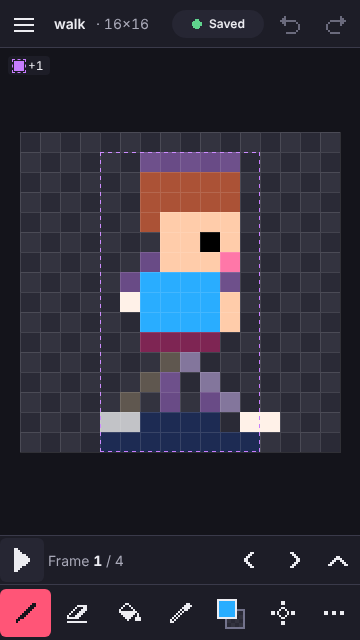
The four gestures
- One finger draws. The stroke applies as you move, with the pencil, eraser or whichever tool is active.
- Two fingers move and zoom. Pinch to zoom, drag to pan. Once a second finger lands, nothing more is painted.
- A long press picks a colour. Hold for about 400 ms without moving more than a few pixels and the colour under your finger becomes the current colour.
- Undo and redo are buttons. They are in the top bar. Two-finger tap for undo and three-finger tap for redo exist, but they are off by default because accidental taps are worse than one extra button press. You can turn them on in settings.
What if a second finger touches by accident? The editor decides by timing. If the second finger lands within 150 ms of the first, or the first has barely moved, the half-drawn stroke is cancelled as if it never happened, because it was almost certainly the start of a pinch. If you had already been drawing a deliberate stroke, it is kept as drawn up to that moment, and one undo removes it. Either way a multi-finger gesture never paints.
If you draw with a pen, the pen draws and a resting hand only pans, until about ten seconds pass without pen input.
Precision mode: place the exact pixel
On a 16 or 32 pixel canvas, a fingertip covers several pixels at once. You cannot see what you are about to change, and you can only guess. Precision mode solves that. Turn it on from the bar and dragging no longer paints. Instead, a crosshair appears 48 pixels above your finger and snaps to the pixel grid. Slide until it sits on the pixel you want, then tap the large Place button under your thumb. Near the top edge, where there is no room above, the crosshair flips below your finger.
Hold Place while you drag and it paints along the path of the crosshair, as a single stroke with a single undo. Lines, rectangles and ellipses work in two steps: Place sets the first corner, you move the crosshair, and a second Place completes the shape.
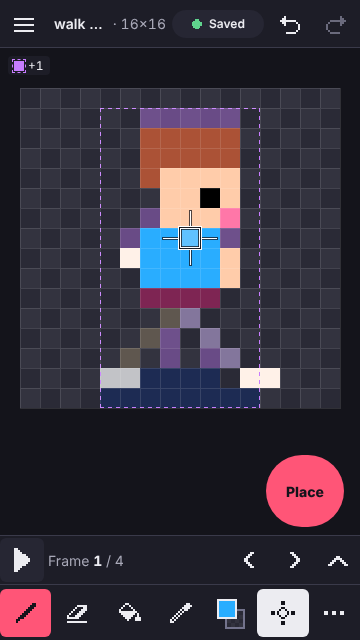
The same cursor serves the keyboard. With the canvas focused, arrow keys move it one pixel, Shift plus an arrow moves it eight, Space places and Enter picks the colour. With a pen or mouse, the 48 pixel offset is not applied, because you can already see where the pointer is.
Timeline, colours and the rest
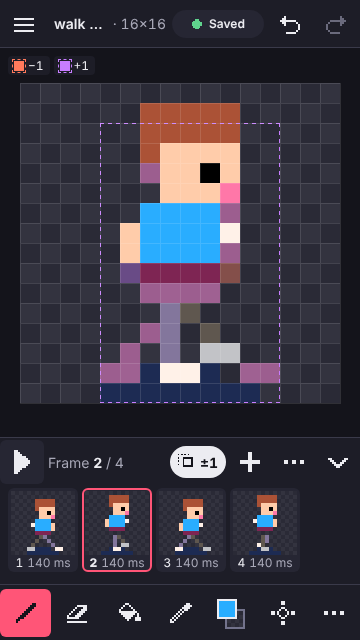
The timeline starts as a thin strip with play, the frame number and previous and next buttons. Tap the arrow to expand it into a row of frame thumbnails with their durations. Onion skin shows the neighbouring frames as faint ghosts with dashed outlines, one tint for before and another for after, so motion is readable without relying on colour alone.
Colours live in a sheet that opens from the swatch in the bar. The palettes guide explains how editing, importing and the built-in palettes work. On a landscape phone the bar turns into a rail along the side, and on a tablet the tools, palette and timeline get their own panels.
Where your work is saved
There are no accounts, so there is nowhere in the cloud to save to. Your work is saved in your browser, automatically, a moment after you stop drawing. The Saved chip in the top bar shows the current state, and if saving ever fails the chip changes to Not saved and a banner offers an export, so you are never left guessing.
Browsers on phones are the strictest about storage. Safari in particular can clear site data for sites you have not opened in about a week, and in private browsing the data disappears when you close the tab. Adding the editor to your home screen can help, but you should not rely on it. Use the Export option to save a .pxl file, the native project format, for anything you would be sad to lose, and keep it somewhere like your files app.
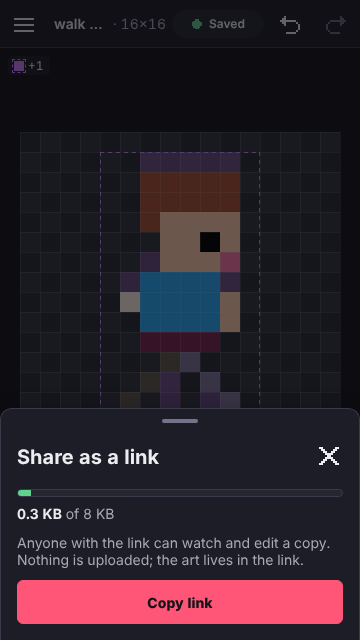
You can share an animation as a link. The pixels are packed into the link itself, so nothing is uploaded, and whoever opens it sees a player and can make their own editable copy.
Tips for small screens
- Start with a 16 or 32 pixel canvas. Small canvases suit small screens, and the pixels are big enough to see.
- Zoom in with two fingers before you do detail work, then use precision mode for single pixels.
- Pick colours with a long press instead of opening the palette.
- Turn the phone sideways for a taller canvas and a side rail.
- Use the onion skin from the second frame onwards, and keep the changes between frames small.
To try it, open the bounce starter and change a frame. It opens as a new copy, so you cannot damage anything.