A Piskel alternative that works on your phone
Why people look for an alternative
Piskel is free, open source and has been the default browser tool for small animated sprites for a long time. Nothing here is a reason to stop using it if it works for you. People look around for a few ordinary reasons: they want to draw on a phone or tablet, they want a project to survive without an account, or they want the exported files to drop straight into a game engine.
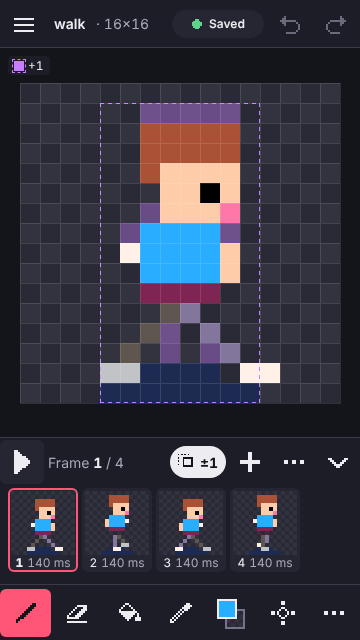
PixelFlipbook is a free pixel-art animation editor made for those cases. It runs in the browser, it was designed around a thumb before it was adapted to a mouse, and it saves your work in your own browser as you draw. There is no sign-in, no sync service and no upload: your sprites live on your device until you export or share them.
A typical session is small on purpose. You pick a canvas from 1 to 512 pixels per side (presets run from 16 to 128), draw a frame, add the next one with the previous frames showing as faint onion-skin ghosts, press play, and export a GIF or a sheet. Everything is built around that loop.
Coming from Piskel?
- In Piskel, save each sprite as a
.piskelfile to your computer. Look for the save option that downloads a .piskel file, not the GIF or PNG export, because only the .piskel file keeps your frames and layers. - Open PixelFlipbook and choose Open file, or drop all your files on the window at once. Several files at a time are fine.
- Read the import report. It lists anything that changed, like a sprite that uses more than 255 colours. It stays available from the project menu, so you can read it again later.
| In Piskel | In PixelFlipbook |
|---|---|
| Frames panel | Timeline, at the bottom |
| Onion skin | Onion skin toggle, in the timeline |
| Layers | Layers: in the More menu on a phone, a side panel on tablets and desktops |
| Export to spritesheet | Export, then Spritesheet, with JSON |
| Export to GIF | Export, then GIF, at 1x, 2x, 4x or 8x |
| Saving | Automatic, in your browser. The Saved chip is always visible |
Have sample files? We are collecting real .piskel files to test the importer against. If you are happy to share some, email them to report@pixelflipbook.com. By sending files you agree that they may be added to the project as test fixtures, used only to check that imports stay exact. Please send only files you made yourself.
What carries over, and what does not
The importer is built to be exact. Here is what happens to each part of a file:
- Pixels and colours. Every pixel keeps its exact colour. If the sprite uses 255 colours or fewer, it opens with an indexed palette that holds exactly those colours, in the order they first appear. Nothing is merged and no extra colours are invented. If it uses more, it opens in full-colour mode, still pixel-exact, and a banner offers to convert it to a palette.
- Partly see-through pixels. A pixel that is partly transparent is kept as it is. The report tells you how many there are, because Piskel showed them as solid.
- Frames and timing. Piskel stores a single frame rate for the whole sprite, so every frame gets the same duration, rounded to a millisecond count. A frame rate that makes no sense (zero or negative) falls back to 100 ms with a warning. You can change the duration of any frame afterwards.
- Layers. Layer names and opacity come across. The limit here is 64 layers and 256 frames, and a file over the limit is refused with a plain message rather than cut short silently.
- Broken or hostile files. A file that is not a valid .piskel file is refused with "This isn't a valid .piskel file". In a batch, one bad file does not stop the others.
When you import more than one file, none of them opens by itself. You get a list with one line per file, a check mark for each success and a reason for each failure, and an Open button next to the ones that worked. The same file imported twice becomes two projects, so you cannot overwrite your own work by accident.
How day-to-day drawing differs
Touch is the main input. One finger draws. Two fingers move and zoom the canvas. A long press picks the colour under your finger. Precision mode puts a crosshair above your fingertip and a large Place button under your thumb, so you can put a single pixel exactly where you want it. The phone and iPad guide explains each gesture.
The palette is yours. In indexed mode, changing a swatch recolours every pixel that uses it, and the palette never grows colours you did not choose. You can paste a list of hex codes or import a .hex or .gpl file, and the palettes guide covers the details.
Saving is automatic. A Saved chip in the top bar tells you the state of your work at all times, and if a save ever fails, the chip says so within a second. Because the data lives in your browser, a few precautions are worth taking: export a .pxl backup of work you care about, and do not rely on a browser that you clear regularly.
Exports are made for games. A GIF is one tap. A spritesheet comes with Aseprite-style JSON, so an engine that already reads Aseprite files can read it. If you use Godot, there is a ready-made bundle, and the sprite sheet guide shows the free route.
Where Piskel is still the better pick
Be honest about the trade. Piskel has years of community use, an online gallery, offline desktop apps and a large pool of tutorials. If you rely on any of those, keep using it. PixelFlipbook is newer and smaller on purpose: it has no accounts, no gallery and no cloud storage, so there is nowhere to keep a project except your own device and the files you export.
Other tools are worth knowing as well. Aseprite is the professional standard for pixel art and animation on the desktop, and it is paid software. Pixelorama is free, open source and built with Godot. All three can coexist: PixelFlipbook writes Aseprite-style JSON, so a sheet exported here can also be read by tools that expect Aseprite files.
If your main device is a phone or tablet, or you want a quick way to turn a sprite into a sheet and a GIF without making an account, the quickest way to judge is to open one of your own files. It takes less than a minute, and nothing leaves your browser.
Try it with a starter animation
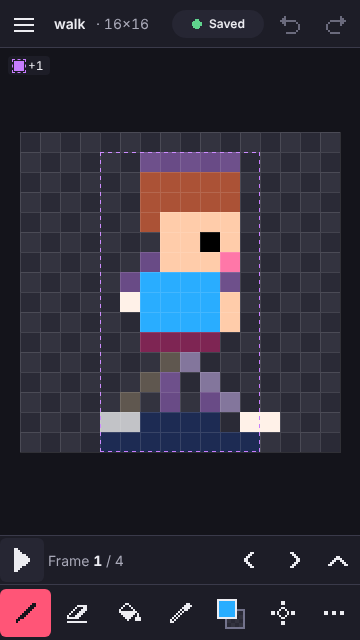
No files to hand? Open one of the starters and look around: the walking character is four frames at 16 by 16 pixels with the default palette. It opens as your own copy, so you can break it freely. The bouncing ball and blinking character are there too. Each time you open a starter you get a new project, and your original is never touched.
When you are ready to move your own work across, come back to the steps at the top of this page: save as .piskel, drop the files in, read the report.